

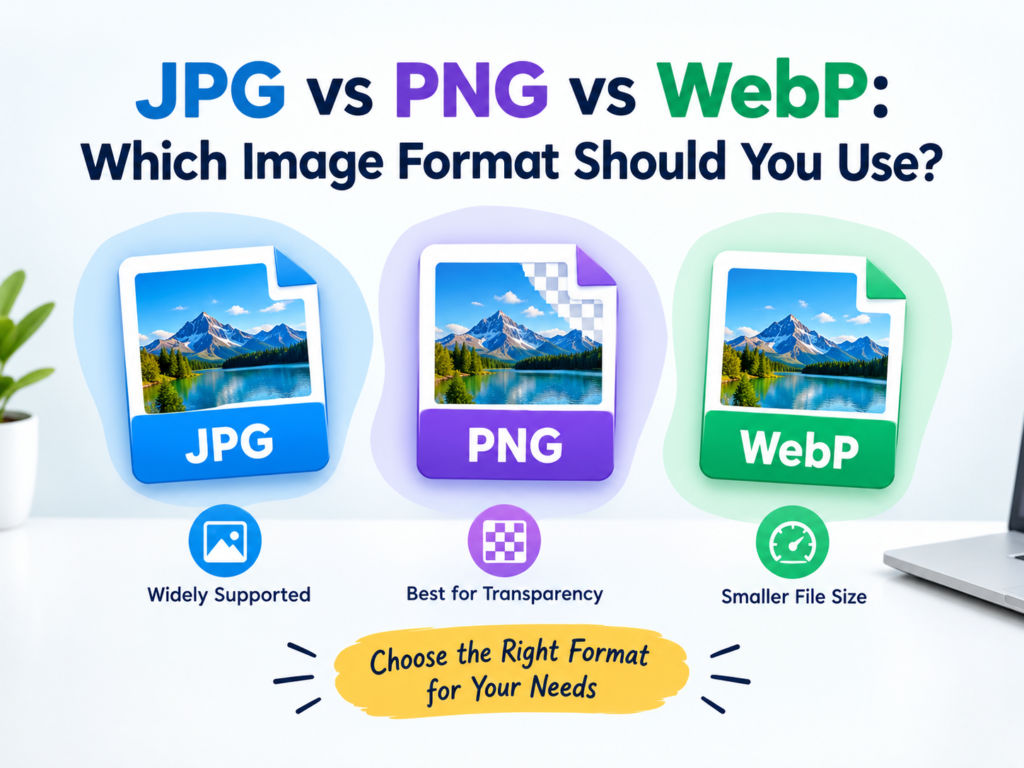
Most people pick an image format without thinking: whatever the camera saved, or whatever the screenshot tool produced. That is fine until your website slows down, your logo gets a white box around it, or an upload form rejects your file. here we guide u about JPG vs PNG vs WebP.
The format you choose affects three things: how big the file is, how sharp it looks, and where it will work. This guide explains JPG, PNG, and WebP in plain language, and ends with a simple rule you can use every time.
The Short Answer
- JPG for photos.
- PNG for logos, screenshots, and anything needing a transparent background.
- WebP for websites, when you want the smallest file at good quality.
If you want the reasoning behind that, keep reading.
JPG (JPEG): The Photo Specialist
JPG has been the default photo format for decades, and for good reason. It uses lossy compression, which throws away fine detail the human eye barely notices. A photo with millions of color shifts, like a sky, a face, or a landscape, shrinks dramatically.
Strengths
- Small files for photographs
- Supported everywhere: every browser, phone, email client, and upload form
- Adjustable quality, so you choose the balance between size and sharpness
Weaknesses
- No transparency. Transparent areas become a solid color, usually white.
- Quality degrades each time you re-save it.
- Text and sharp edges can look fuzzy at low quality settings.
Best for: photos, blog images, social media posts, and email attachments.
PNG: The Sharp, Transparent One
PNG uses lossless compression. Nothing is thrown away, so the image stays pixel-perfect no matter how many times you save it. It also supports transparent backgrounds, which is why logos almost always use it.
Strengths
- Crisp text, lines, and edges
- Full transparency support
- No quality loss on re-saving
Weaknesses
- Large files for photographs, often several times bigger than the same photo as a JPG
- Not ideal for image-heavy web pages
Best for: logos, icons, screenshots, diagrams, infographics, and graphics with text.
If you have a logo saved as a JPG with a white box around it, you can rebuild it with transparency using our JPG to PNG converter. We also wrote a step-by-step guide on how to convert JPG to PNG with a transparent background.
WebP: The Modern All-Rounder
WebP was developed by Google to replace both JPG and PNG on the web. It is unusual because it can do almost everything:
- Lossy compression (like JPG)
- Lossless compression (like PNG)
- Transparency
- Animation (like GIF)
Google’s own testing found WebP files are typically around 25-35% smaller than JPG at comparable visual quality. Lossless WebP is also usually smaller than PNG. Smaller images mean faster pages, which supports better Core Web Vitals scores and a better experience on mobile.
Strengths
- Smallest file sizes at similar quality
- Transparency plus lossy compression in the same file
- Supported by all modern browsers
Weaknesses
- Some older software, email clients, and upload forms still don’t accept it
- Not every image editor opens it by default
- Social platforms and print services often convert or reject it
Best for: website and blog images where page speed matters.
Side-by-Side Comparison
| Feature | JPG | PNG | WebP |
|---|---|---|---|
| Compression | Lossy | Lossless | Both |
| Transparency | No | Yes | Yes |
| File size (photos) | Small | Large | Smallest |
| File size (graphics) | Medium | Medium | Small |
| Animation | No | No | Yes |
| Compatibility | Universal | Universal | Modern browsers, limited elsewhere |
| Best use | Photos | Logos and screenshots | Web delivery |
The 10-Second Rule for Choosing a Format
Ask yourself these questions in order:
- Does it need a transparent background? Use PNG (or WebP on a website).
- Is it a photograph? Use JPG, or WebP if it’s going on your website.
- Is it a logo, icon, or screenshot with text? Use PNG.
- Will it be emailed, printed, or uploaded to a form? Use JPG or PNG. Avoid WebP here, because compatibility is the deciding factor.
- Is it for your website and speed matters most? Use WebP, with a JPG or PNG fallback if you need maximum compatibility.
Real-World Scenarios
Blog post header photo. Use WebP or JPG at 75-80% quality, resized to the width it displays at.
Company logo for your site header. Use PNG with a transparent background, or SVG if you have a vector version.
Screenshot in a tutorial. Use PNG so the text stays readable. If the file is huge, run it through an image compressor.
Photo for a job application form. Use JPG, and check the size limit. Many forms cap uploads at 100-200 KB, so you may need to resize and compress it.
Product photos for a shop. Use JPG or WebP for the photos. Use PNG only if you need a clean cutout on a transparent background, which our Background Remover can create.
Image to print. Use JPG or PNG at the right resolution. Check the dimensions with the Print Size and DPI Calculator before sending to a printer.
Converting Between Formats Safely
Converting formats doesn’t always help, and sometimes it backfires.
- JPG to PNG doesn’t restore lost quality. The detail was already discarded. A converted PNG keeps the same look but often becomes much larger. Convert only when you need transparency or a lossless working copy.
- PNG to JPG saves a lot of space on photos but removes transparency. Use our PNG to JPG converter when you have a photo saved as a PNG by mistake.
- Always keep the original. Compress and convert copies, never your only version.
After choosing the right format, shrink the file further with the Image Compressor. Our guide on how to compress images without losing quality walks through the best settings. And if the image is larger than it needs to be, resize it first with the Image Resizer.
Common Mistakes to Avoid
- Saving photos as PNG. It makes files several times larger than necessary.
- Saving logos as JPG. You get fuzzy edges and a white box instead of transparency.
- Using WebP for everything. It’s great on websites, but not every platform accepts it.
- Re-saving JPGs repeatedly. Quality drops each time. Edit from the original.
- Ignoring dimensions. A 4000-pixel image shown at 800 pixels wastes bandwidth in any format.
Frequently Asked Questions
Which is better, JPG or PNG?
Neither is better overall. JPG is better for photos because the files are much smaller. PNG is better for logos, screenshots, and graphics because it keeps edges sharp and supports transparency.
Is WebP better than JPG?
For websites, usually yes. WebP typically produces smaller files at similar quality and supports transparency. JPG is still better when you need universal compatibility, such as emails, print shops, and older software.
Does WebP lose quality?
It can do either. WebP offers both lossy and lossless modes. Lossy WebP removes some data like JPG does, while lossless WebP keeps the image identical.
Which format is best for SEO?
Google doesn’t rank pages by image format directly. It does reward fast pages, and smaller images help. WebP and well-compressed JPG both support that. Add descriptive file names and alt text for the best image SEO.
Can I convert JPG to PNG to improve quality?
No. Converting doesn’t bring back detail that JPG compression already removed. Convert to PNG only when you need transparency or want to avoid further quality loss when editing.
Which format is best for logos?
PNG with a transparent background is the standard choice. SVG is even better when you have a vector version, because it scales to any size without blurring.
Which format should I use for email?
JPG for photos and PNG for graphics. Both open on virtually every device and email client, and you can compress them to keep the attachment small.
Final Thoughts
You don’t need to memorize every technical detail. Use JPG for photos, PNG for transparency and sharp graphics, and WebP for fast websites. Check where the image will be used, pick the format that fits, and compress it before you upload.
Ready to optimize your images? Try the free Image Compressor, or convert your files with the JPG to PNG and PNG to JPG converters.