

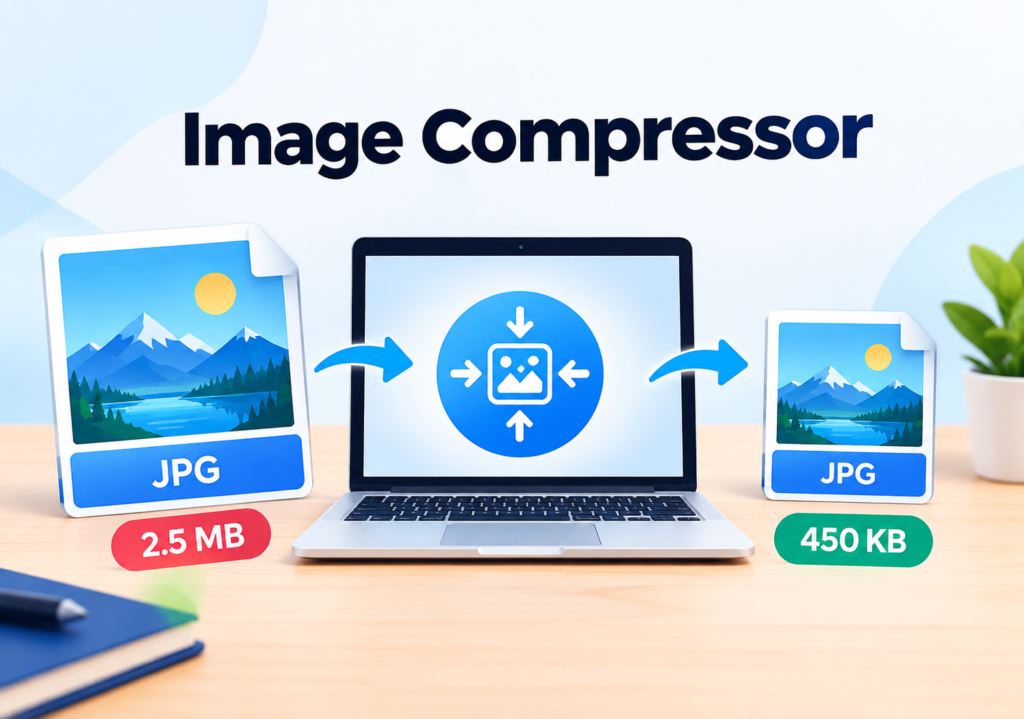
How to Compress Images Without Losing Quality
Large images are one of the most common reasons a website loads slowly. They also fill up your phone storage, bounce off email size limits, and fail on upload forms that cap files at 1 or 2 MB. The good news is that you can shrink most images dramatically and still have them look sharp.
This guide explains how image compression works, which settings matter, and how to compress your photos for free in a few clicks.
What Is Image Compression?
Image compression reduces the file size of a picture by removing or simplifying data. There are two main types:
- Lossy compression permanently removes some image data that the human eye barely notices. File sizes drop a lot. JPG and WebP use this method.
- Lossless compression reorganizes the data more efficiently without removing anything. The image stays identical, but the savings are smaller. PNG uses this method.
“Without losing quality” really means without losing visible quality. With the right settings, a compressed image looks the same to the viewer while being a fraction of the size.
Why Compressing Images Matters
- Faster websites. Smaller images load faster, which improves user experience and helps your search rankings. Page speed is part of Google’s Core Web Vitals.
- Better mobile experience. Visitors on slow connections won’t wait for a 5 MB photo to load.
- Easier sharing. Compressed files fit within email attachment limits and messaging apps.
- Less storage and bandwidth. You can store more photos and use less hosting bandwidth.
- Form uploads. Job portals, government sites, and exam forms often set strict size limits, such as “under 200 KB”.
Read Also: Advanced QR Code Generator: Free, Custom QR Codes Online
Step-by-Step: Compress an Image Online for Free
The fastest way is to use our free Image Compressor.
- Open the tool. Go to the Image Compressor on Toolharo.
- Upload your image. Drag and drop a JPG or PNG, or click to choose a file.
- Choose the quality level. Start around 70-80%. This range usually gives a big size reduction with no visible difference.
- Preview the result. Compare the before and after file sizes.
- Download. Save the compressed image and use it wherever you need it.
If the result looks too soft, raise the quality a little and try again. If the file is still too big, lower it in small steps.
7 Tips to Compress Images Without Losing Quality
1. Choose the right file format
The format you start with affects how well an image compresses:
- JPG is best for photographs and images with many colors and gradients.
- PNG is best for logos, screenshots, and graphics with sharp edges or transparency.
- WebP is a modern format that is usually smaller than both at similar quality.
Using PNG for a large photograph is a common mistake. Converting it to JPG can cut the size by 70% or more. You can do that with our PNG to JPG converter. If you need the opposite, for example to keep transparency, use the JPG to PNG converter.
2. Resize before you compress
A photo straight from a modern phone can be 4000 pixels wide, while your website might only display it at 800 pixels. Those extra pixels are wasted bytes.
Resize the image to the largest size it will actually be shown at, then compress it. Our Image Resizer makes this quick, and combining resizing with compression gives the biggest savings.
3. Aim for 70-80% quality for JPGs
Quality settings above 85% add a lot of file size for very little visible improvement. The 70-80% range is the sweet spot for most photos. For hero images or photography portfolios, you can go to 85%.
4. Remove unnecessary metadata
Photos often carry hidden data such as camera model, GPS location, and editing history. Stripping this data reduces file size slightly and also protects your privacy when you share images online.
5. Avoid compressing the same image repeatedly
Each time you re-save a lossy image, it loses a bit more quality. Always keep an original copy and compress from that, rather than compressing an already-compressed file again and again.
6. Match compression to the use case
Not every image needs the same treatment:
| Use case | Suggested approach |
|---|---|
| Blog post images | Resize to 1200 px wide, JPG at 75% |
| Website banners | Resize to the display width, JPG or WebP at 80% |
| Logos and icons | PNG (lossless) or SVG |
| Email attachments | Resize and compress to under 1 MB |
| Form uploads (under 200 KB) | Resize to around 800 px, JPG at 60-70% |
7. Compare before and after
Always zoom in and check the compressed result, especially around text and edges. If you see blocky patches or fuzzy outlines, increase the quality slightly.
Common Mistakes to Avoid
- Uploading full-size camera photos to your website. Always resize first.
- Using PNG for photos. It creates unnecessarily large files.
- Over-compressing. Dropping quality below 50% usually causes visible artifacts.
- Forgetting about mobile. Most visitors will see your images on small screens, so you don’t need desktop-wide files.
Compressing Images for Your Website
If you run a WordPress site, large images are one of the easiest speed wins. A simple routine works well:
- Resize images to the maximum display width.
- Compress them with the Image Compressor before uploading.
- Use descriptive file names (for example,
blue-running-shoes.jpg) and fill in the alt text. - Enable lazy loading so images below the fold load only when needed.
Doing this consistently can noticeably improve how fast your pages load.
Frequently Asked Questions
Does compressing an image reduce its quality?
It depends on the method. Lossless compression keeps the image identical. Lossy compression removes some data, but at moderate settings (70-80%) the difference is usually invisible to the human eye.
What is the best format for compressed images?
JPG is best for photos, PNG for graphics and transparency, and WebP offers great quality at smaller sizes. Pick the format that matches the type of image.
How can I compress an image to under 200 KB?
First resize it to a smaller width, such as 800 pixels. Then compress it at around 60-70% quality. If it is still too large, lower the quality in small steps until you reach the target size.
Is it safe to compress images online?
Yes, as long as you use a trustworthy tool. Avoid uploading sensitive documents or personal photos to sites you don’t trust.
Can I compress PNG images without losing transparency?
Yes. PNG compression keeps transparent areas intact. Don’t convert a transparent PNG to JPG, because JPG doesn’t support transparency.
How much can I reduce an image’s file size?
Typical photos can shrink by 60-80% with little visible change. The exact result depends on the original size, format, and content.
Final Thoughts
Compressing images is one of the simplest ways to speed up your website, save storage, and make files easier to share. Resize first, choose the right format, keep quality around 70-80%, and always preview the result.
Ready to try it? Open the free Image Compressor and shrink your first image in seconds.
Related tools and reading:
- Image Resizer to set the right dimensions before compressing
- JPG to PNG Converter for transparent backgrounds
- JPG to PDF Converter to combine photos into one document
- How to Convert JPG to PNG with a Transparent Background (your first blog post)
Publishing notes:
- Set the featured image to a before/after comparison, and add alt text like “image compression before and after”.
- Set the focus keyword to “compress images without losing quality” in Rank Math or Yoast.
- Add
FAQPageschema for the FAQ section if your SEO plugin supports it. - Place the Image Compressor link near the top too, for example in a short callout box under the first paragraph.
- Once you publish the “JPG vs PNG vs WebP” post, link to it from the file-format tip.
Our YouTube Channel For more help and guide