

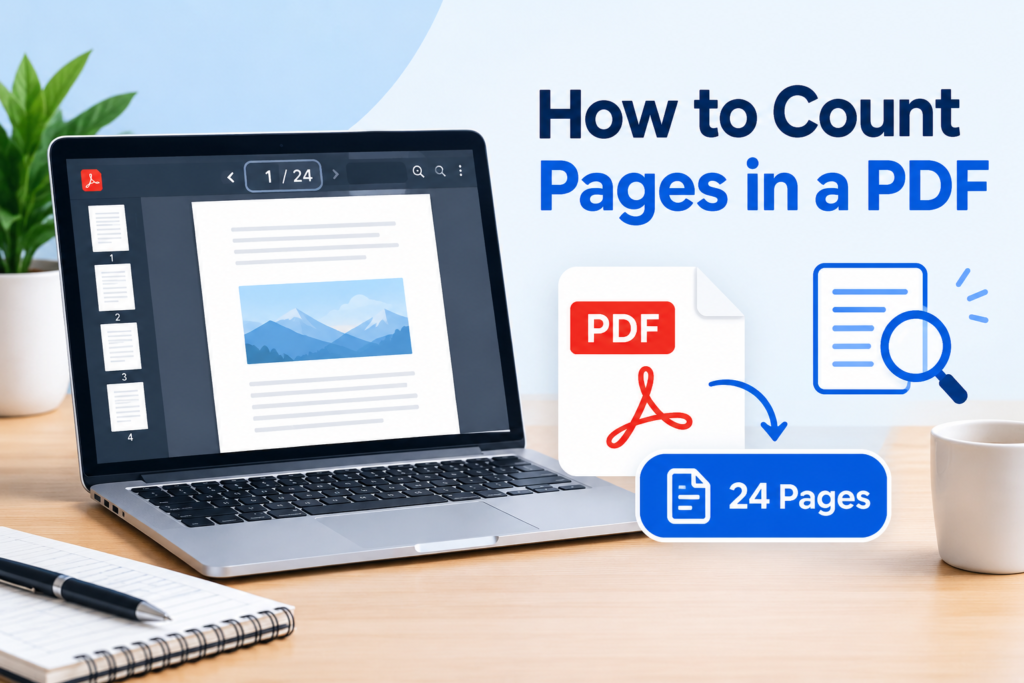
Knowing how many pages are in a PDF can be useful in many situations. You may need to check the length of a document before printing it, calculate printing costs, prepare a report, organize digital files, or simply find out how long a document is. Fortunately, counting pages in a PDF is usually very easy, and you do not need advanced technical skills to do it.
In this guide, we will explain several simple ways to count pages in a PDF, including using a PDF reader, your web browser, online PDF tools, and other common methods. We will also explain what to do when a PDF contains scanned pages, blank pages, or unusual formatting.
What Is a PDF Page Count?
A PDF page count is simply the total number of pages contained in a PDF document. For example, if a PDF contains pages numbered from 1 through 25, its page count is 25.
The page count is different from the number of pages that contain visible text. A PDF can contain blank pages, images, scanned documents, forms, or pages with only a small amount of content. All of these still count as pages in the PDF.
For example, a 50-page PDF may contain 45 pages of text and 5 blank pages. The document still has a total of 50 pages.
Why Is It Important to Count PDF Pages?
There are several reasons why you might want to know the exact number of pages in a PDF.
If you are printing a document, knowing the page count helps you estimate the number of sheets of paper and the approximate printing cost. It can also help you decide whether double-sided printing is appropriate.
Read More: Compress PDF Online Free – Reduce PDF File Size Instantly
Students may need to check the length of assignments, research papers, or study materials. Businesses may use page counts when preparing contracts, invoices, reports, manuals, and other documents.
Page count can also be useful when uploading files to websites that have page limits. Some applications and document-processing systems allow only a certain number of pages, so checking the count beforehand can prevent problems during upload.
Method 1: Check the Page Count in a PDF Reader
One of the easiest ways to count pages is to open the PDF using a PDF reader.
Many popular PDF applications display the current page number and total number of pages somewhere near the bottom of the window. For example, you might see something similar to:
Page 1 of 20
In this example, the PDF contains 20 pages.
Open your PDF and look at the navigation area around the bottom or top of the application. Depending on the software you are using, the page count may be displayed differently.
You can also open the thumbnail or page-navigation panel. The final thumbnail usually represents the last page of the document.
This method is particularly convenient when you already have a PDF reader installed on your computer.
Method 2: Count Pages Using Your Web Browser
Modern web browsers can open PDF files without requiring separate PDF software.
If you are using Chrome, Microsoft Edge, Firefox, or another browser that supports PDF viewing, simply open the PDF file in the browser.
Once the PDF loads, look at the PDF viewer’s navigation controls. Most browser PDF viewers show the current page and the total number of pages.
For example, if the viewer displays:
7 / 32
you are currently viewing page 7 and the document contains 32 pages in total.
This is one of the quickest methods because you do not need to install additional software.
Method 3: Use an Online PDF Page Counter
Another convenient option is to use an online PDF tool. This can be particularly useful if you are working from a computer or device where you do not have a PDF reader installed.
An online PDF page counter generally works by allowing you to upload your PDF. The tool processes the document and tells you how many pages it contains.
The basic process is usually simple:
- Open the PDF page counter tool.
- Upload your PDF file.
- Wait for the file to be processed.
- View the total page count.
- Remove the file or close the tool when finished.
Online tools can be useful when you need a quick answer without opening a desktop application.
However, you should always be careful when uploading sensitive documents. Avoid uploading confidential contracts, financial records, personal documents, or other private information to websites unless you trust the service and understand its privacy practices.
Method 4: Check the PDF Properties
On some computers, you can also check information about a PDF through its file properties.
Right-click the PDF file and select the available properties or information option. Depending on your operating system and installed software, the information shown may include details about the document.
Read also: Image to Text Converter
However, this method does not always display the page count. If the operating system does not provide that information, opening the PDF in a reader or browser is usually easier.
Method 5: Count Pages on a Smartphone
You can also check the number of PDF pages from a smartphone or tablet.
Most modern mobile devices can open PDF files using built-in or third-party applications. When you open the PDF, the viewer will often display the current page and total number of pages.
For example, a mobile PDF viewer might show 1 of 15, indicating that the document contains 15 pages.
The exact location of the page counter depends on the application you use, but the feature is common in most PDF readers.
How to Count Pages in a Large PDF
Large PDFs can contain hundreds or even thousands of pages. Manually scrolling through such a document is unnecessary.
Instead, use the PDF viewer’s page navigation controls. Most readers allow you to enter a page number directly or jump to the last page.
For example, if you jump to page 500 and the viewer indicates that the document ends at page 500, then the PDF contains 500 pages.
Online PDF page-counting tools can also make this process easier because they can automatically determine the number of pages after you upload the file.
Do Blank Pages Count in a PDF?
Yes. Blank pages normally count as pages in a PDF.
For example, imagine a PDF has the following structure:
- Page 1: Introduction
- Page 2: Text
- Page 3: Blank
- Page 4: Image
- Page 5: Conclusion
The document has five pages, even though page 3 contains no visible content.
This is important when preparing documents for printing, submission, or archiving.
Do Scanned Pages Count?
Yes. Scanned pages are still PDF pages.
A scanned document may contain images of physical pages rather than selectable digital text. Even if you cannot highlight or search the text, each scanned page is still counted as a page in the PDF.
For example, a scanned document containing 40 images representing individual pages will normally be a 40-page PDF.
This means you do not need to use OCR (Optical Character Recognition) simply to determine the number of pages.
What If the PDF Page Numbering Looks Different?
Sometimes the page number printed on a document does not match the actual PDF page number.
For example, a PDF may contain a cover page followed by an introduction. The printed document might label the introduction as page 1 even though it is the second PDF page.
This can happen because PDF page numbering and printed page labels are not always the same.
When you need the actual number of pages in the file, use the PDF viewer’s total page count rather than relying on the numbers printed on individual pages.
Frequently Asked Questions
How can I quickly check the number of pages in a PDF?
Open the PDF in a browser or PDF reader and look for the page navigation indicator. It commonly displays the current page followed by the total number of pages.
Can I count PDF pages online?
Yes. Online PDF page counters can automatically determine the number of pages after you upload a PDF.
Do blank pages count toward the PDF page count?
Yes. A blank page is still a page within the PDF and is included in the total page count.
Do scanned documents count as PDF pages?
Yes. Scanned pages are counted like normal PDF pages, even when the text is stored as an image.
Can I count PDF pages on my phone?
Yes. Most smartphone PDF viewer applications display the current page and total number of pages.
Is there a difference between PDF pages and printed page numbers?
Yes. A PDF can contain cover pages, blank pages, or sections with different numbering. The PDF’s total page count refers to the actual pages contained in the file.
Conclusion
Counting the pages in a PDF is usually a simple task. The fastest option is often to open the document in a PDF reader or web browser and check the page navigation indicator. For people who need a quick solution without installing software, an online PDF page counter can also be useful.
Remember that blank pages, scanned pages, image-only pages, and other types of PDF content still count toward the document’s total number of pages. Also, do not confuse printed page numbers with the actual number of pages contained in the PDF.
Whether you are checking an assignment, preparing a business report, estimating printing costs, or organizing a collection of digital documents, knowing how to find the PDF page count can save time and make document management easier.